Maestro AI Studio - Step-by-Step Tutorial
Maestro AI Studio - Step-by-Step Tutorial
Install and run Maestro, an AI studio for creating images, videos, voiceovers, and edited media. Follow either the local NVIDIA GPU path or RunPod cloud GPU path. Finish with practical exercises and a reproducible checklist.
Level: Beginner to intermediate
Platforms: Windows / Linux / cloud GPU (macOS compatibility caveat below)
Source video: I Found the EASIEST Way to Generate Uncensored AI Videos & Images (19:10)
1. Understand what you are installing
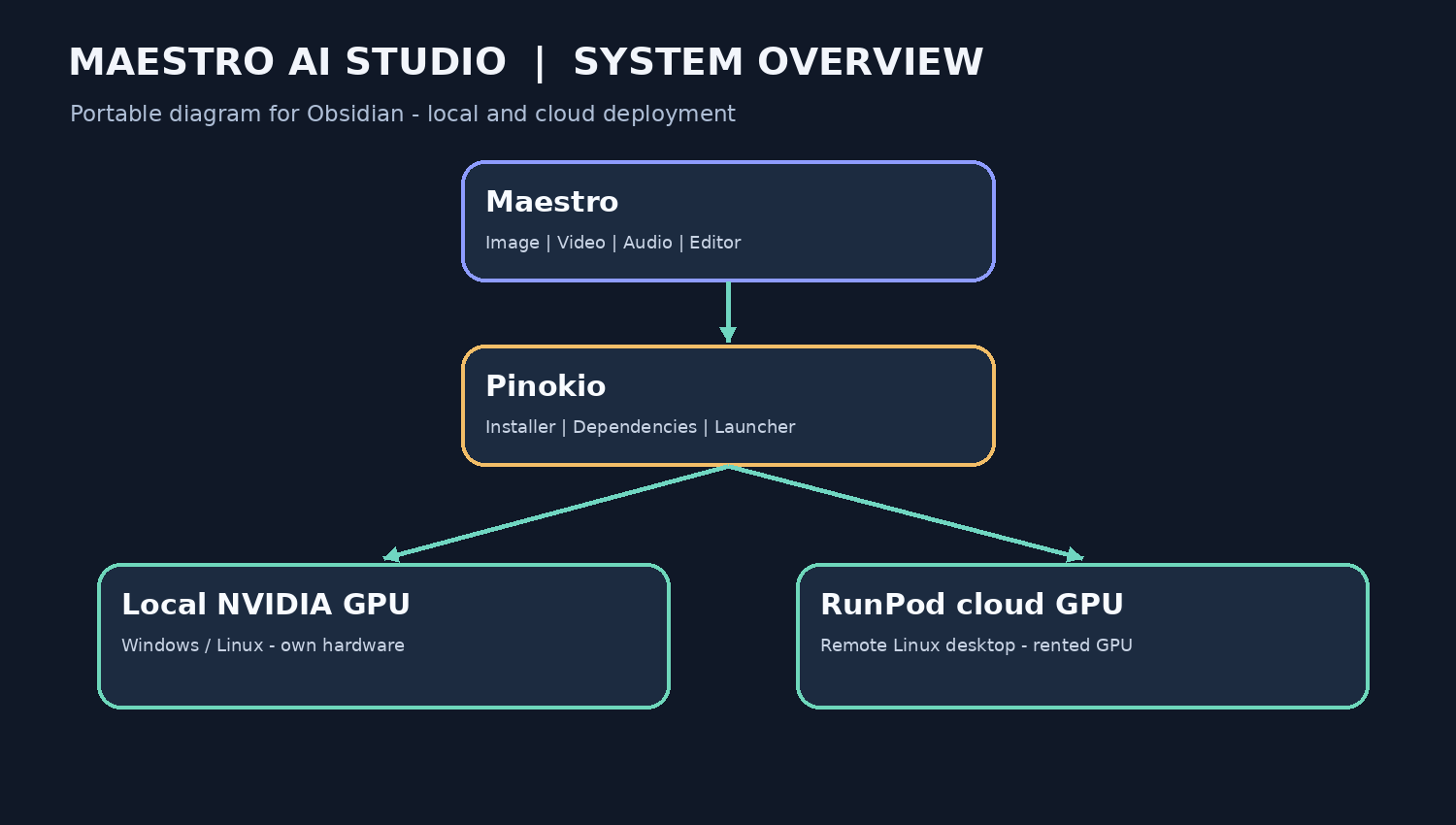
Maestro is the AI media studio. Pinokio is the installer/application manager. RunPod provides an optional remote GPU.
| Component | Purpose |
|---|---|
| Maestro | Generate and edit images, video, and audio |
| Pinokio | Install and launch Maestro and its dependencies |
| RunPod | Rent NVIDIA GPU compute rather than owning a powerful GPU |
Architecture - Obsidian native Mermaid
flowchart TD
    U["User / Browser"] --> M["Maestro AI Studio"]
    M --> P["Pinokio launcher + dependencies"]
    P --> S{"Compute environment"}
    S -->|Local| L["Windows / Linux + NVIDIA GPU"]
    S -->|Cloud| R["RunPod GPU Pod + remote Linux desktop"]
    L --> G["AI model inference"]
    R --> G
    G --> O["Generated images / videos / audio"]
O --> E["Maestro editor / local or persistent storage"]The video calls Maestro “free” and “uncensored.” The software may be free, but RunPod compute and storage cost money. Cloud use is not equivalent to fully local privacy: your media and model inputs are processed on third-party infrastructure.
2. Prerequisites
Pinokio has a macOS version, but that alone does not establish that Maestro's CUDA-based video workflow is supported on Apple Silicon. Check the Maestro repository's platform support before assuming the local Mac path works. A RunPod NVIDIA GPU is the more predictable route for this tutorial.
3. Choose a deployment method
| Local machine | RunPod cloud GPU | |
|---|---|---|
| Hardware | Own compatible NVIDIA GPU | Any client computer with a browser |
| Running cost | Electricity and existing hardware | GPU rental plus applicable storage |
| Data location | On your machine | Cloud provider infrastructure |
| Best for | Regular usage, known compatible hardware | Trials or occasional high-VRAM tasks |
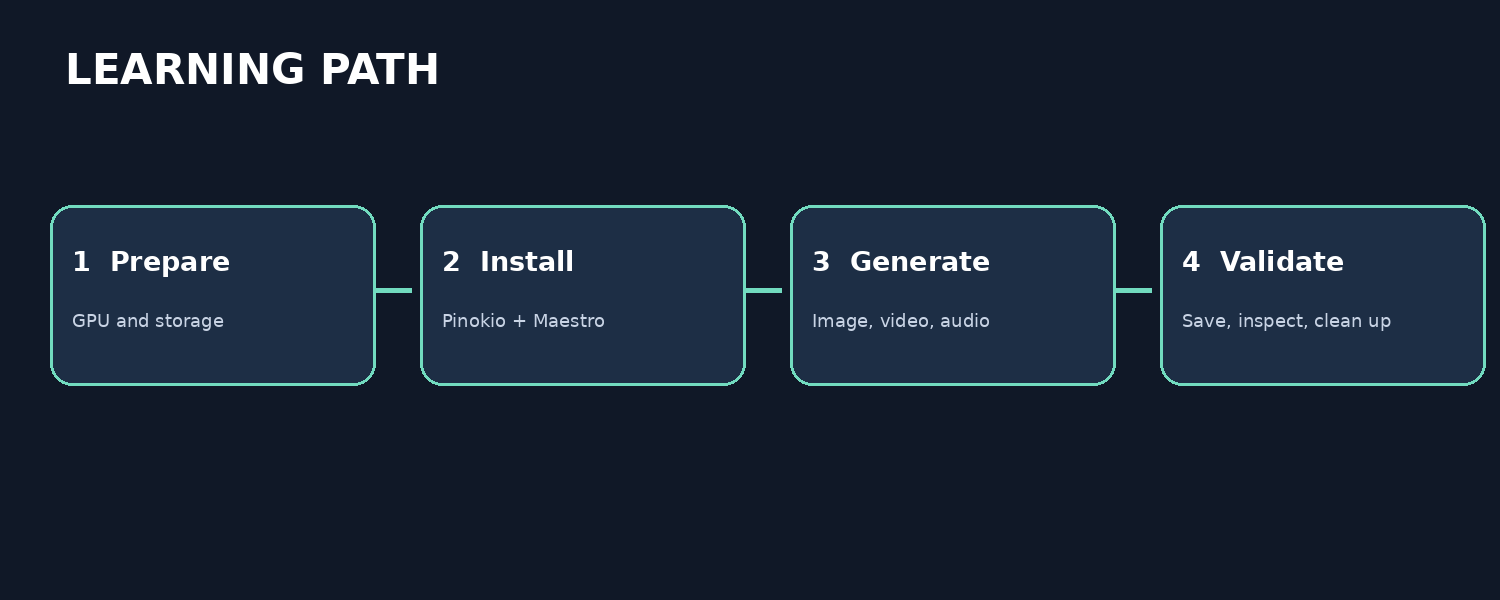
4. Path A - Install locally (video 04:24-04:56)
Step 4.1 - Download Pinokio
Step 4.2 - Find and install Maestro
Step 4.3 - Launch and test
The video demonstrates Maestro automatically downloading a missing model after you choose it and begin generating. Expect a large first-run download; record the model name and resulting disk use.
5. Path B - RunPod cloud installation (video 05:09-13:29)
Step 5.1 - Register and set a budget
Step 5.2 - Deploy a PyTorch pod
| Setting | Video example |
|---|---|
| Template | PyTorch |
| CUDA | 12.8+ |
| Temporary/container disk | 150 GB |
| Exposed port | 6080 |
| GPU | NVIDIA; choose according to workload and budget |
Step 5.3 - Choose the GPU
The presenter mentions RTX 3090 instances around US$0.50/hour and more expensive professional GPUs around US$2.50/hour. Pricing and availability can change at any time.
Step 5.4 - Decide on persistent storage
Step 5.5 - Deploy and verify the pod
nvidia-smi
df -h /workspace
Step 5.6 - Install the web desktop
The video follows installation commands from the creator's companion website. Those exact commands are not spoken in the transcript. Do not paste invented commands or run an unreviewed installation script.
Step 5.7 - Open the remote desktop
Replace YOUR_POD_ID with the actual pod ID (the endpoint/path may vary depending on the remote-desktop package installed):
https://YOUR_POD_ID-6080.proxy.runpod.net/vnc.html
Step 5.8 - Install and launch Pinokio
pinokio --no-sandbox
--no-sandbox turns off a security boundary. The video uses it in a remote container. Avoid using this flag on your everyday machine, and do not expose an unauthenticated desktop to the internet.
Step 5.9 - Install Maestro
Step 5.10 - Confirm GPU usage
Generate a small test image, and in a separate shell watch usage:
watch -n 2 nvidia-smi
6. Exercise - Generate your first image (video 15:27-16:47)
Goal: One photorealistic 16:9 image.
- In Maestro, open Studio → Image.
- Select a compatible image model shown in your installed version.
- Set aspect ratio to 16:9.
- Paste this prompt:
A cinematic photograph of a vintage red sports car parked on a rain-soaked Tokyo street at night. Neon reflections, realistic lighting, detailed textures, shallow depth of field, professional photography, 16:9 composition.
- Click Generate and allow any first-time model download.
- Save the image and record the model/settings.
Learning observation: Did it download a model, or reuse cached weights?
7. Exercise - Generate a short video (video 13:48-15:27)
Goal: Animate a cinematic street scene.
- Open Studio → Video.
- Select an available video-generation workflow, such as first-frame input if supported.
- Start with a short duration and modest resolution.
- Use the prompt:
A red sports car slowly drives down a wet Tokyo street at night. The camera tracks smoothly alongside the vehicle. Neon reflections shimmer across the road. Cinematic realistic motion, subtle atmospheric fog, natural lighting.
- Select a compatible video model. The presenter mentions MiniMax H3 and LTX variants, plus faster four-step variants; availability depends on your Maestro version.
- Generate, inspect motion consistency, and export.
8. Exercise - Character consistency (video 16:06-16:47)
Goal: Reuse the appearance of an original fictional character across images or clips.
A reference image improves consistency but does not guarantee perfect identity preservation.
9. Exercise - AI voiceover (video 16:47-17:41)
Goal: Make an audio narration for the video.
- Open Studio → Audio.
- Select an available text-to-speech model.
- Enter this narration:
Welcome to the future of AI-powered content creation. Today, we are learning how to generate cinematic visuals and professional voiceovers using our own AI studio.
- Generate and export audio.
- Optionally test cloning your own voice (or a voice whose owner has explicitly consented).
10. Exercise - Director and Editor (video 17:41-18:34)
The presenter describes Director mode but does not test a completed Director project in this video. Treat the following as an exercise, not a guaranteed feature walkthrough.
11. Troubleshooting
| Symptom | Diagnostic approach |
|---|---|
| GPU not found | Run nvidia-smi; confirm the correct pod and NVIDIA drivers |
| Out of VRAM | Try a smaller model, lower resolution, or larger GPU |
| First run slow | Check for model download and checkpoint loading |
| Browser desktop unreachable | Confirm pod is running, port 6080 exposed, and remote desktop service started |
| Installation fails | Read the installer log, confirm dependencies, check disk |
| Work disappears across sessions | Store models and outputs on a genuinely persistent mount |
| RunPod costs continue | Review active pods, terminated pods, and retained storage |
12. Cost planning
Illustrative compute costs from price examples stated in the video. These are not live RunPod quotes; storage and other fees are extra.
| Compute price | 2-hour run | 8-hour run |
|---|---|---|
| US$0.50/hour | US$1.00 | US$4.00 |
| US$1.00/hour | US$2.00 | US$8.00 |
| US$2.50/hour | US$5.00 | US$20.00 |
Save/download work and then stop or terminate unused GPUs as appropriate. Stopped compute can still incur storage costs. Terminating a Pod may delete its non-persistent filesystem.
13. Final completion checklist
Session log template
| Test | Model | GPU | Resolution / duration | Time | Notes |
|---|---|---|---|---|---|
| Image | |||||
| Video | |||||
| Audio |
14. References
- Original video
- Pinokio Desktop
- Pinokio Maestro listing
- RunPod
- RunPod documentation
- Video creator's setup guide
Bottom line: Complete one end-to-end image → video → audio → edit project before installing a large library of models. Verify local/cloud compatibility and measure actual generation cost rather than relying only on promotional demonstrations.